
Brevo Free Plan Review: Inbox Delivery, After a Phone Check
Tested on the free plan · November 2026
Brevo used to be called Sendinblue, so older guides may use that name.
We signed up for Brevo with a Google account, finished its setup, built an email campaign and sent it to our own list. Short answer: Brevo's free plan sent our test email to the inbox, with a small "Sent with Brevo" badge. Before it would send anything, though, it made us verify a phone number. And Brevo's free plan caps how many emails you can send each day.
Our verdict
Good fit for: a small business that sends occasional newsletters to a modest list and wants them to reach the inbox.
You'll outgrow it when: you need to send to a bigger list in one go, or you want A/B tests, landing pages or the Brevo badge gone.
What we built
We used Google sign-in, then answered Brevo's setup questions: name, organization, website and a mailing address. We sent one campaign, written in Brevo's simple editor, to the one contact on our list: our own address, which Brevo added for us. Every point below comes from our test notes and screenshots.
Setup: address required, and a picky form
Brevo requires an organization address because it goes in every email you send. Its address field rejected the "#" in our mailbox number, so we wrote "Unit" instead. Setup also has a box to opt out of Brevo's own marketing emails; it's unticked by default.
You'll need a phone to send
The dashboard showed a banner right away: you'll need to verify your phone before sending your first campaign. When we clicked to send, Brevo asked for a phone number, texted a code, and only then let us continue. It also offered two-factor sign-in, which you can skip.
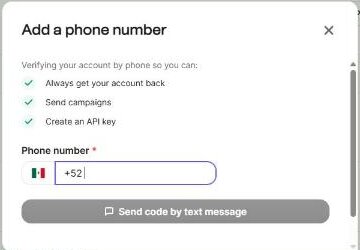
It took a minute. But if you're setting up a brand account and don't want to tie your own phone to it, know that going in.
What's included free
| Feature | Free plan | Notes from our test |
|---|---|---|
| Email campaigns | Included free | Built and sent one; a daily sending cap applies |
| Editors and templates | Included free | Drag-and-drop, simple and HTML editors, plus templates |
| Send now or schedule | Included free | Both available on free |
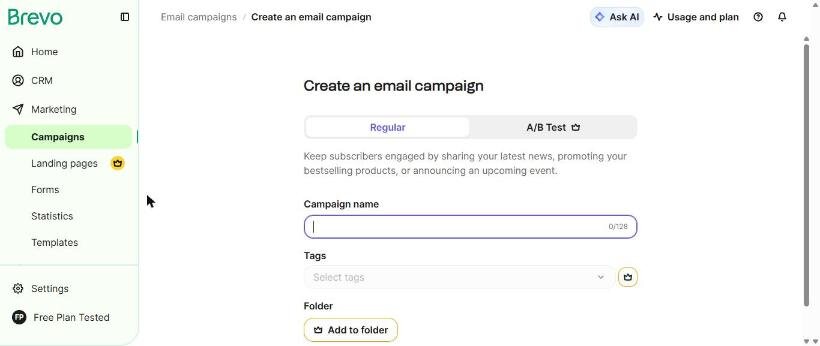
| A/B tests, landing pages | Paid only | Shown with a crown in the app |
| "Best time" and batch sending | Paid only | Shown with a crown on the send screen |
| Removing the Brevo badge | Paid only | Pricing page lists logo removal on paid plans |
| Automations, forms | Not tested | On our list for the re-test |
Where our email landed
Our test campaign reached the Gmail inbox, not spam. It took a few minutes to arrive, longer than some tools we've tested. Like MailerLite, Brevo sent it from an address on its own sending domain rather than as our Gmail address, which likely helped.
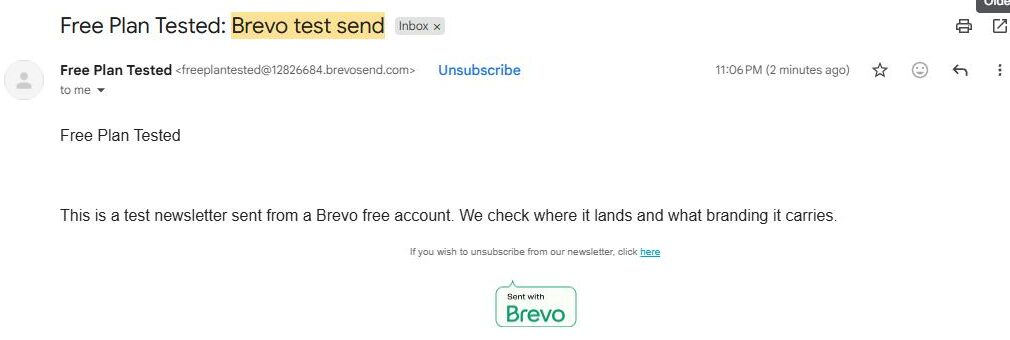
One test isn't proof, and inbox results vary. For better delivery to real readers, set up your own domain when you can.
Where the paywall hits
Daily cap. Brevo's free plan limits how many emails you can send each day. The dashboard and the campaign screen both show how many you have left. With a bigger list, one newsletter could take several days to reach everyone. Check Brevo's pricing page for the current limit.
Branding. Free emails carry a "Sent with Brevo" badge. Removing it is a paid feature.
Extras. A/B tests, landing pages, best-time sending and batch sending all need a paid plan.
What we liked
- Our test email reached the inbox
- Three editors and ready-made templates on free
- The sender name was filled in for us
- A clear count of how many sends you have left
- An opt-out box for Brevo's own marketing at setup
What held us back
- Phone verification before your first send
- A daily sending cap on free
- A "Sent with Brevo" badge on every email
- The address field rejected a "#"
Brevo free plan vs. the alternatives
MailerLite and Brevo both got our test email into the inbox, and MailerLite's free plan lists simple automations, such as a welcome email. Buttondown was faster to set up and needed no phone. If you need to send larger batches at once, Brevo's daily cap is the thing to weigh.
Should you upgrade?
Stay on free if your list is small and the daily cap covers your sends.
Think about upgrading if your list outgrows the daily cap, or you want the badge gone, A/B tests or landing pages. Current prices are on Brevo's pricing page.
Ready to try Brevo? A small business that sends occasional newsletters and wants them in the inbox.
Try Brevo free